

Contributed by Phil Hetzel on 2025-05-15
The open-source Vercel AI SDK is a popular choice for building generative AI applications due to its ease of use and integrations with popular frameworks, such as Next.js. However, builders recognize that to reach production, they also need to incorporate observability into their applications. This cookbook will show you how to use Braintrust’s native integration with the Vercel AI SDK for logging and tracing a generative AI application.
Getting started
To get started, make sure you have the following ready to go:- A Braintrust account and API key
- A project in Braintrust
- An OpenAI API key
npminstalled
npx to download the application locally:
.env.local.example file to .env.local in the root of the project and add the following environment variables:
http://localhost:3000. Feel free to test the application by asking it about the weather in Philadelphia.
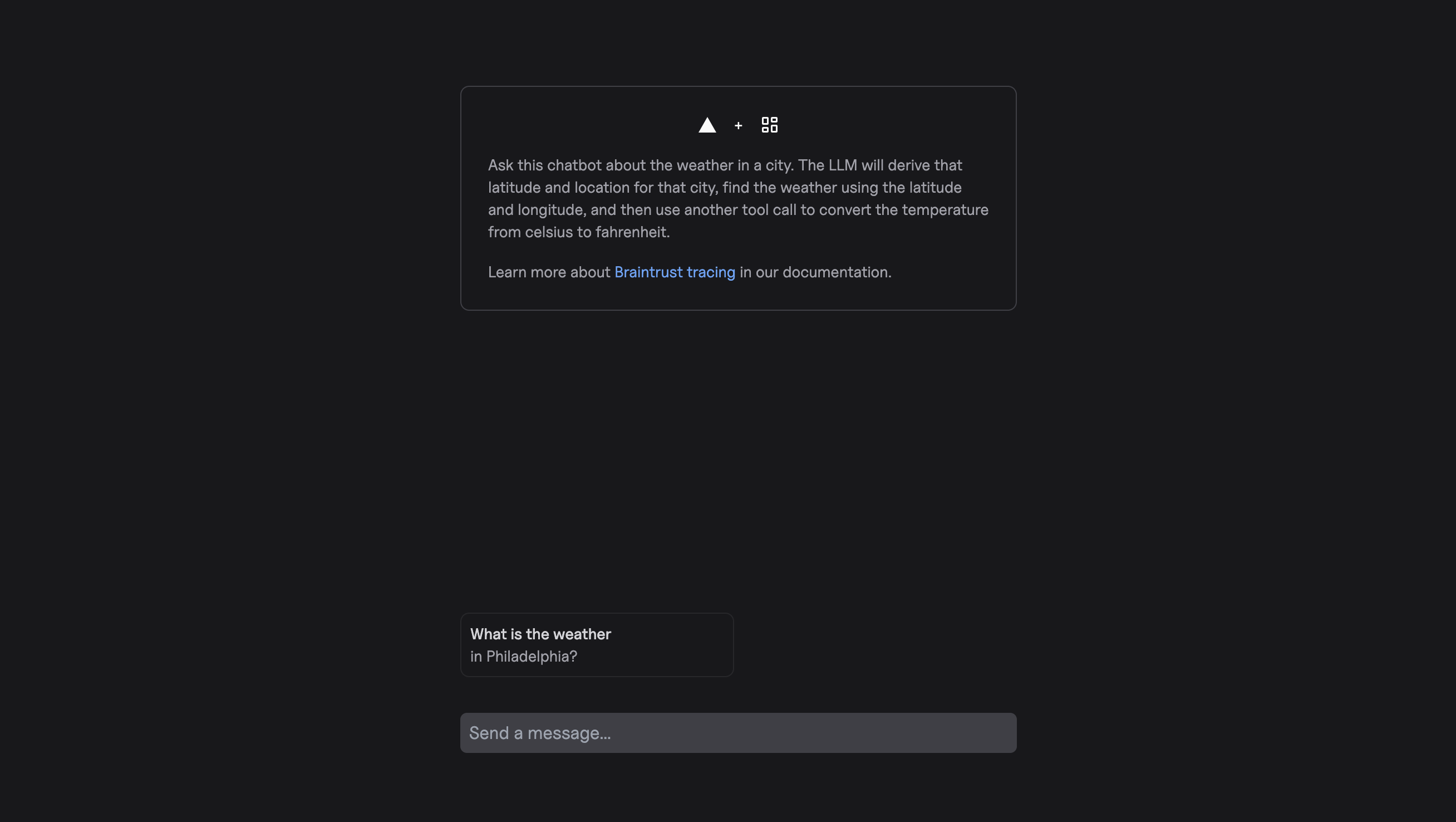
Tracing the application
Initializing a logger
To send logs to Braintrust, you’ll need to initialize a logger by calling theinitLogger function. This function takes an apiKey and a projectName as arguments. The apiKey is your Braintrust API key, and the projectName is the name of your project in Braintrust. For lines 1-11 in the app/(preview)/api/chat/route.ts file, uncomment the lines where instructed to load the necessary Braintrust functions and initialize the logger. Lines 1-11 should look like this:
app/(preview)/api/chat/route.ts
Automatic tracing of AI SDK functions
The Braintrust SDK provides functions to “wrap” the Vercel AI SDK, automatically logging inputs and outputs. You can use thewrapAISDK function, which provides a unified interface that works across all AI SDK versions (v3, v4, v5, and v6 beta).
The wrapAISDK function wraps AI SDK functions like streamText and generateText, automatically tracing their inputs and outputs. It does not trace intermediary steps such as tool calls that may be invoked during execution. Later in the cookbook, we will explore how to use wrapTraced to trace tool calls and nested functions.
The
wrapAISDK works with the Vercel AI SDK module. If you are not using the
Vercel AI SDK and instead using a model provider’s first-party library
directly, you can wrap your model
clients
with wrapOpenAI or wrapAnthropic.app/(preview)/api/chat/route.ts
getWeather tool call, one log for the getFahrenheit tool call, and one call to form the final response. However, it’d probably be more useful to have all of these operations in the same log.
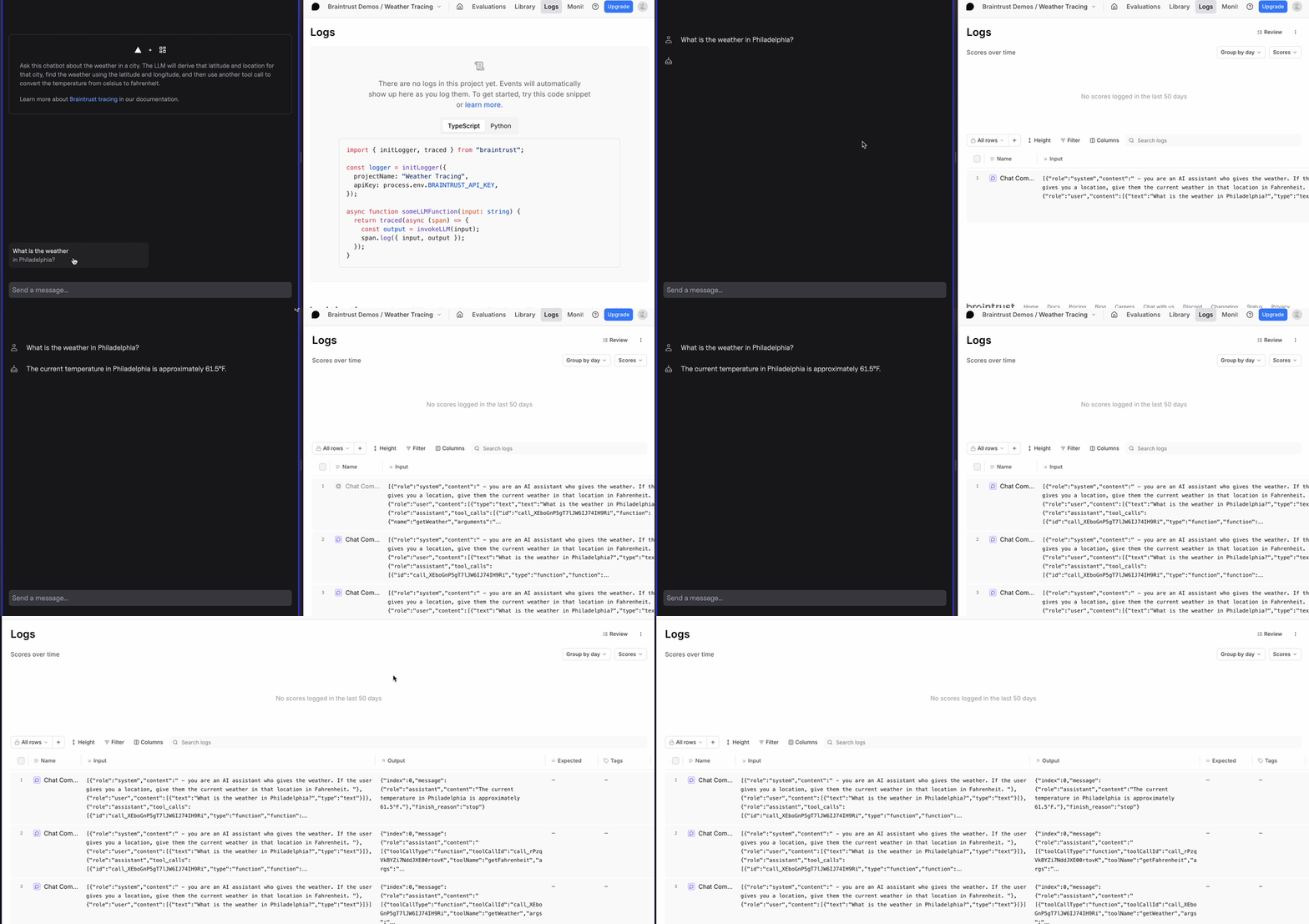
Creating spans (and sub-spans)
When tracing events, it’s common practice to place child events within a single parent event. As an example, take grouping the three logs that we produced above into the same log record. You can do this using thetraced function.
To create a parent span in our weather app, uncomment the traced function (don’t forget to uncomment the final line of code that closes the function). You can also uncomment the onFinish argument, which will log the input and output of the streamText function to the parent span. Your POST route should look like this when finished:
app/(preview)/api/chat/route.ts
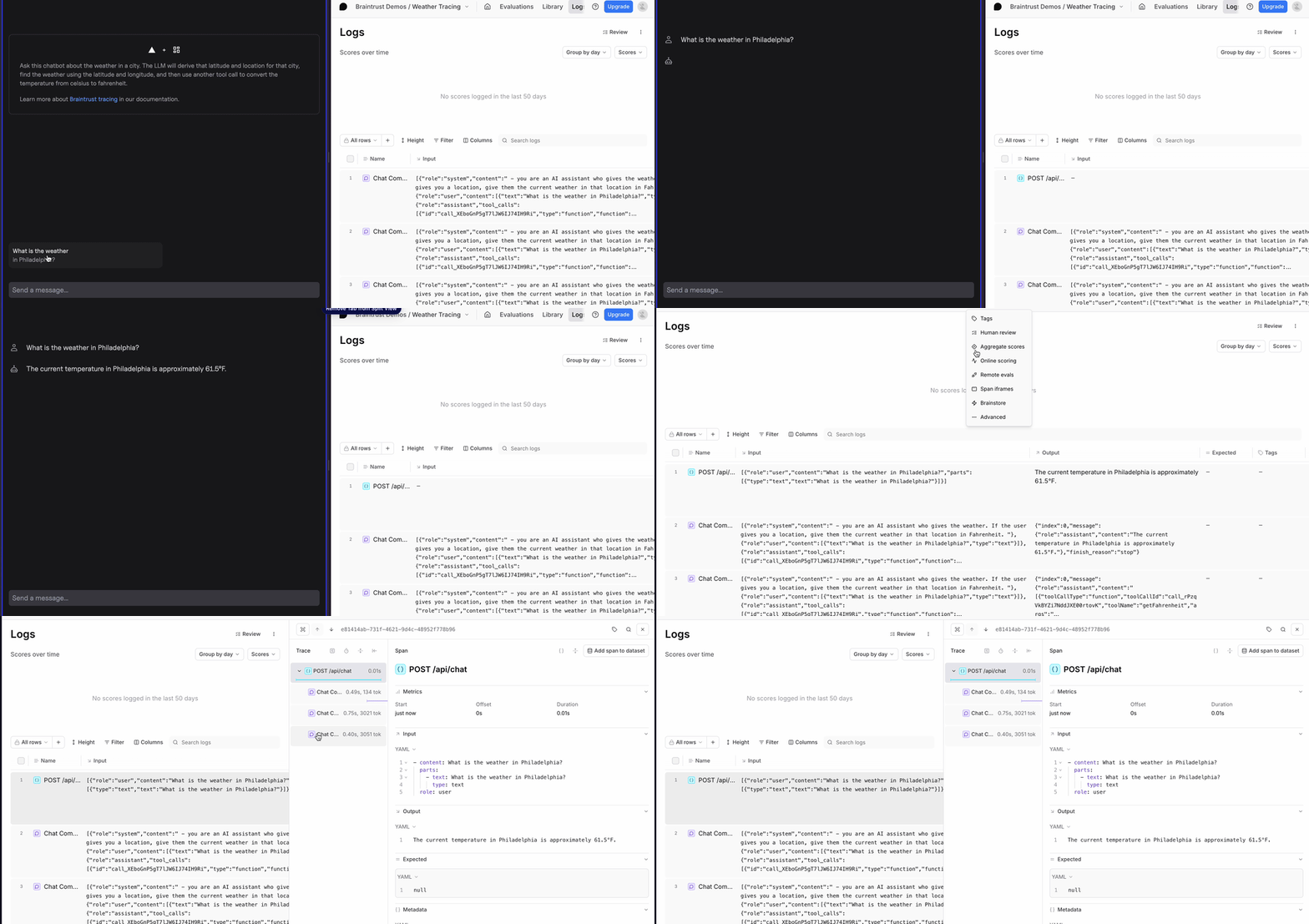
- We created a root span called “POST /api/chat” to group any subsequent logs into.
- We continued to create spans via the
wrapAISDKfunction wrappingstreamText. - We used the
onFinishargument of thestreamTextfunction to gather the input and output of the LLM and return it to the root span.
Tracing tool calls
The last thing that we need to adjust is adding our tool calls and functions to the trace. You can do this by encapsulating existing functions withwrapTraced, which will automatically capture the inputs and outputs of the functions. When using wrapTraced, the hierarchy of nested functions is preserved.
The following code in components/tools.ts has two main components:
- A
getFahrenheittool, which converts a Celsius temperature into Fahrenheit. It also nests thecheckFreezingfunction inside theconvertToFahrenheitfunction. - A
getWeathertool which takes a latitude and longitude as input and returns a Celsius temperature as output.
tools.ts file looks like this:
wrapTraced function enriches our trace with tool calls.
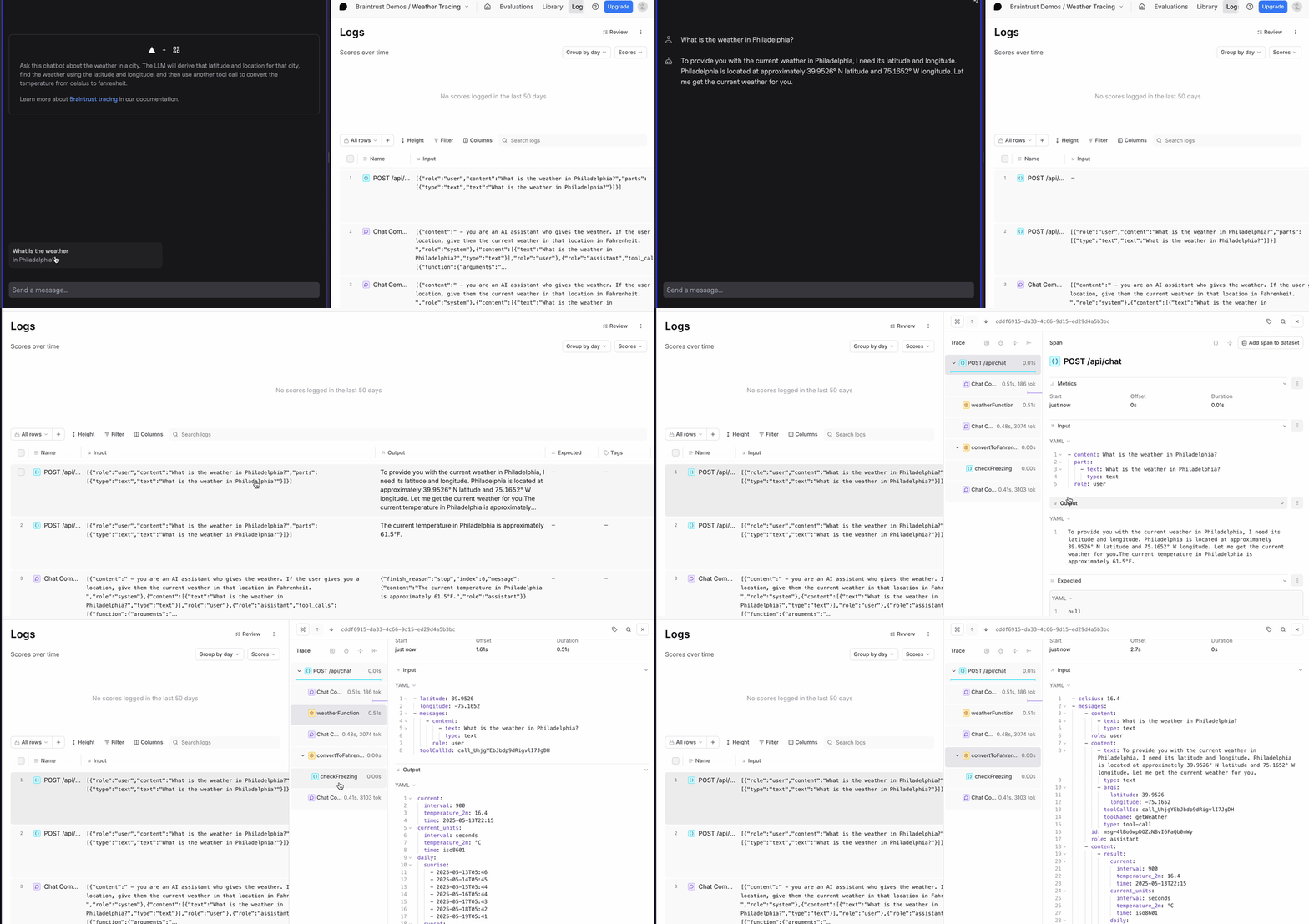
type argument in both traced and wrapTraced change the icon within the trace tree. Also, since checkFreezing was called by weatherFunction, the trace preserves the hierarchy.
Next steps
- Customize and extend traces to better optimize for your use case
- Read more about Brainstore, the database that powers the logging backend in Braintrust